 Many newcomers to the WordPress platform face a common challenge: determining the perfect image size for their posts. Whether you are setting up a new blog or updating an existing one, adding the right image to your text content is essential. After all, text becomes significantly more engaging and accessible when paired with a well-sized visual element[1][6].
The Importance of Image Optimization
Images are not just decorative; they provide dimension and context to your content. While novels might rely solely on 300 pages of text, modern digital publications like The New York Times, Wall Street Journal, UK Guardian, and Toronto Star accompany nearly every piece with an image[2]. Online news platforms and blogs such as TechCrunch and Wise Bread follow this trend because the internet is a visual medium. Much like television, images help to “sell” and “tell” your story, attracting readers to both the visual and informational content[4][6].
Resizing Images in WordPress (2026+ Methods)
You have a post idea, a title, and perhaps 500 to 1,000 words of content. You find a perfect image from Creative Commons, download it, and insert it. However, upon clicking “Preview Post,” you might find the image is too large, crowding out your text and disrupting the layout[2].
Rather than opening a photo editing suite, you can now resize images instantly using the native WordPress Block Editor. While older guides suggested using the HTML tab, modern WordPress versions (7.0+) offer a more intuitive interface in the Image Block settings[2][3].
In the WordPress post editor, click on your image to reveal the Settings panel on the right. Locate the Resolution or Width/Height fields. You can select a default size (Thumbnail, Medium, Large) or enter custom dimensions manually[2].
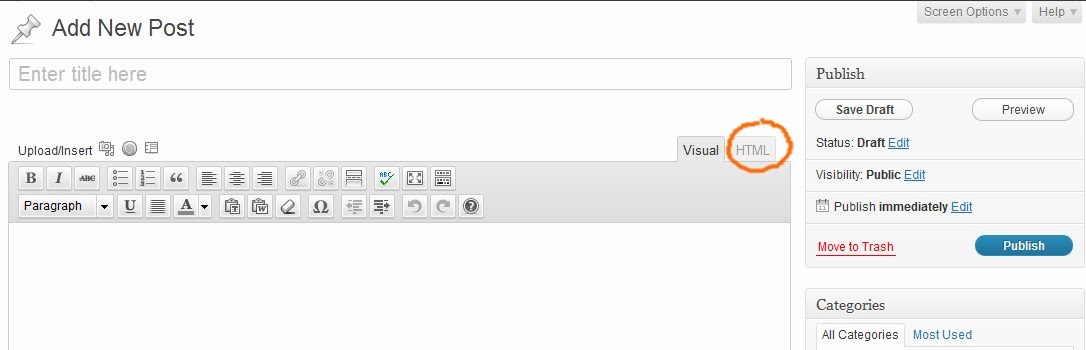
If you prefer to use the HTML code for precise control (similar to the legacy method), you can still find your image tag by using the keyboard shortcut Ctrl+F to search for your image filename. The code will appear as:
[sourcecode language=”html” wraplines=”true”]
<a href=”http://myblog.files.wordpress.com/2011/12/myimagejpg”><img title=”myblogimage” src=”http://myblog.files.wordpress.com/2011/12/myimagejpg?w=150&h=118″ alt=”” width=”150″ height=”118″ />
[/sourcecode]
To adjust the image size here, simply change the numbers in width="150" and height="118". To maintain proportions, scale both dimensions by the same percentage. For example, increasing 150×118 by 25% means multiplying by 1.25 (150 × 1.25 = 187.5 and 118 × 1.25 = 147.5), rounding to 188×148[2][6].
Click the Visual tab (or simply save in the Block Editor) to see your updated image. Adjust the width and height until you strike the perfect balance between text readability and visual impact, ensuring your post is optimized for both desktop and mobile devices[1][4].