Google Analytics remains the cornerstone of Search Engine Optimization in 2026. Google Analytics, now fully evolved into the GA4 (Google Analytics 4) platform, leverages a discrete event-based data model where every click, scroll, and interaction is a core data point[1]. This system provides a comprehensive suite of resources to monitor every aspect of your web page or entire domain with unprecedented granularity. When paired with client websites, GA4 serves as an invaluable tool, offering a wealth of actionable information and resources. Explore our updated Free SEO Tools at XTELWEB/SEO/. In the context of modern SEO, GA4 reveals exactly who visits your site, the pages they engage with, and the precise search terms driving traffic, enabling you to refine your strategy with confidence[1][3].
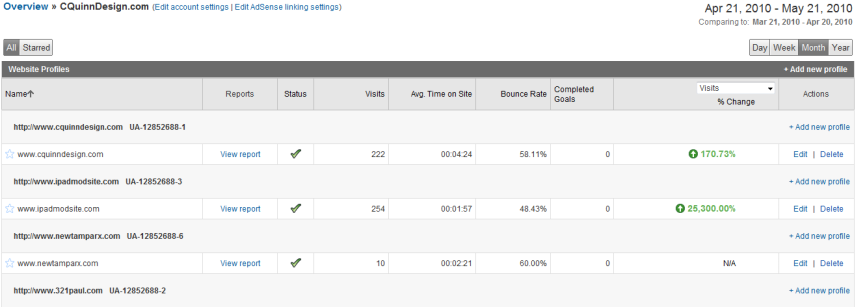
Calls to Action (CTAs) are a critical marketing mechanism for SEO success. In the past, before automated event tracking, marketers often created CTAs and blindly guessed their effectiveness. Today, GA4’s native event tracking allows you to measure the performance of specific CTAs with precision[1]. By logging into your Google Analytics account, you can instantly identify underperforming CTAs and replace them with higher-impact alternatives, transforming guesswork into data-driven decision-making[1][2].
How-To: Implementing Event Tracking in GA4
To begin, you must have a Google Analytics (GA4) account and the Google tag (gtag.js) installed on your website[4]. If you previously installed an older version of GA, ensure you have updated to the current gtag.js implementation, as the base tag is required to connect your site to your GA4 property[4]. Google provides a comprehensive tutorial on updating your code, available at http://code.google.com/apis/analytics/docs/tracking/asyncMigrationExamples.html#BasicPageTracking. When reviewing the tutorial, focus on the section specific to your current code type to ensure proper integration[4].
Before implementing event tracking, review the syntax required to define your events. Unlike the legacy _trackEvent() method, GA4 uses the gtag() function for event configuration[3][4].
The modern syntax for tracking an event in GA4 is:
gtag(‘event’, ‘event_name’, { parameters });
event_name (required)
The unique identifier for the user interaction (e.g., ‘click’, ‘submit’).
parameters (optional)
An object containing key-value pairs to provide context, such as ‘category’, ‘action’, or ‘label'[3].
example: XTELWEB.com
Let’s apply event tracking using the XTELWEB – Free SEO Tools site as a case study. As illustrated in the two circled images below, this page features two distinct CTAs.
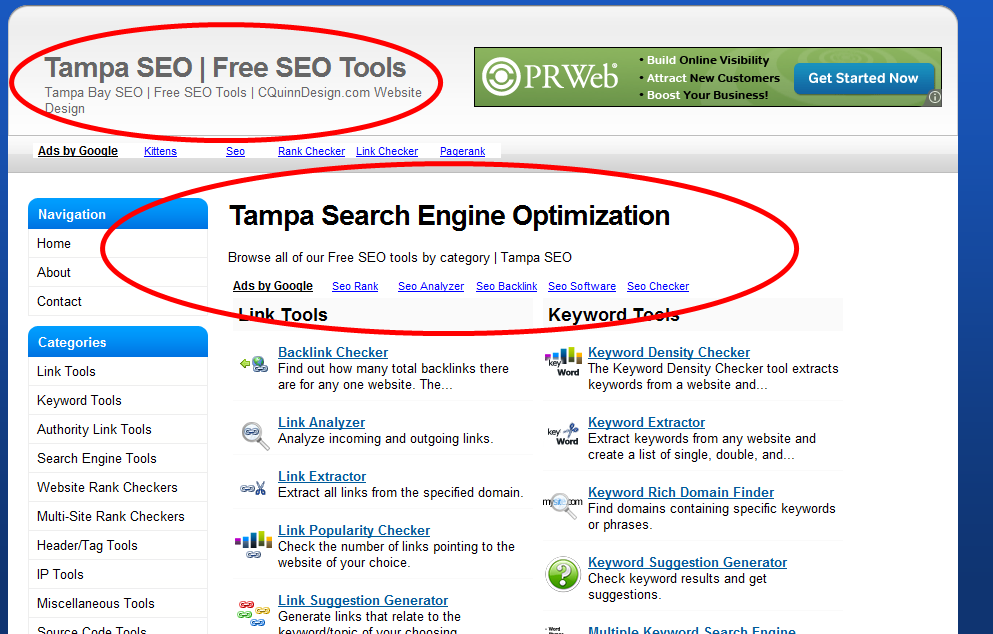
In legacy systems, it was impossible to distinguish which CTA a visitor clicked if they appeared on the same page, or whether the top or middle CTA was selected. GA4 solves this by allowing you to attach unique identifiers to each CTA via JavaScript event listeners[1]. Implementing event tracking is straightforward: add an onClick JavaScript action that triggers a gtag(‘event’) function with your specific syntax[4]. Below are coding examples demonstrating this process.
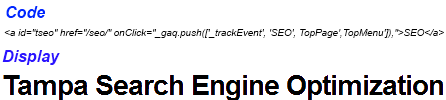
By implementing this code, you can now track the two CTAs separately, measuring their individual effectiveness. I kept the design simple to ensure the SEO Tools section of the website runs fast and minimizes server resource usage. If these CTAs do not yield results, I will enhance their visual appeal. Note the two distinct identifiers in the coding; you must replicate this practice to track your CTAs effectively[1][2].
Conclusion:
Once your links and event tags are configured, navigate to your Google Analytics account and select Reports > Events to view the data GA4 is recording[4]. You can also utilize the DebugView for real-time validation during testing[1]. If you encounter coding issues or need assistance, please Contact us for support. For additional resources directly from the source, refer to Google’s official guide on common pitfalls: Click Here for coding help[1].